
If you have access to your cPanel account, follow these steps to reset your password:
1. Log in to your cPanel account.
2. In the Preferences section, click on Password & Security.

3. Enter your old password.
4. Enter your new password or use a password generator.
5. Click on Change your password now.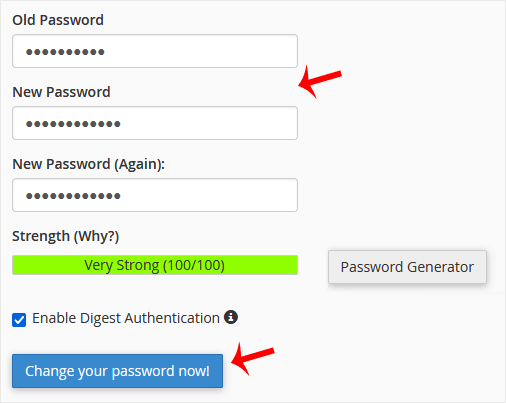
If it displays a success message, it means that the password has been changed. Now, you can access your account using the new password.
Note: If you forgot your cPanel password and cannot access your account, please open a ticket with us.
