Skip to content

How to Upload Files via the SiteWorx File Manager Print

  • 0

You can use SiteWorx's inbuilt file manager instead of an FTP program.


1. Log in to your SiteWorx account.

2. In the File Manager section, click on File Manager.

sw-file-manager-icon.gif


3. If you have multiple domains, choose the appropriate domain from the drop-down menu and click on Login.


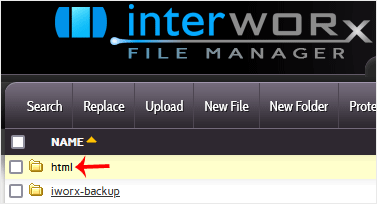
4. Navigate to the directory where you want to upload your file. For uploading a file in the HTML directory, click on it.
siteworx-filemanager-html.gif


5.
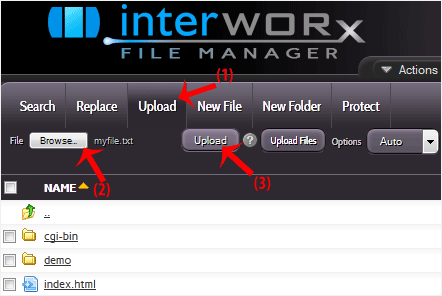
Click on the Upload link in the menu, choose Browse and select the file you want to upload from your computer. After you have selected the file, click on Upload.
siteworx-filemanager-upload.gif


Was this answer helpful?

« Back

Take Your Host

Everything you came for.

Find your way to the right service or support channel. This is a navigation guide, not an AI chat or a support agent.

Do not enter passwords or payment details.

End this chat?

If you end the chat, the current conversation will be closed and a new empty chat will start.

TakeYourHost AIAsk about services, orders, domains, and support.
Screenshot preview Screenshot attached