
Security is important for our data safety. We recommend you to enable the Two-Factor Authentication (2FA) on your cPanel account in order to prevent hackers from accessing your cPanel account even if they have somehow obtained your account details.
What are the Requirements?
You would need a smartphone with a supported time-based one-time password app. Mobile phone OS such as Android, Windows and iOS have an app for 2FA.
How to Enable the Two-Factor Authentication on Your cPanel Account?
1. Log in to your cPanel account.
2. In the Security section, click on Two-Factor Authentication.
3. Click on Setup Two-Factor Authentication. Under Step 1, scan the QR code using your Google Authenticator or 2FA Authenticator application. If your APP doesn't have a QR code reader, you can manually enter the account name and key number.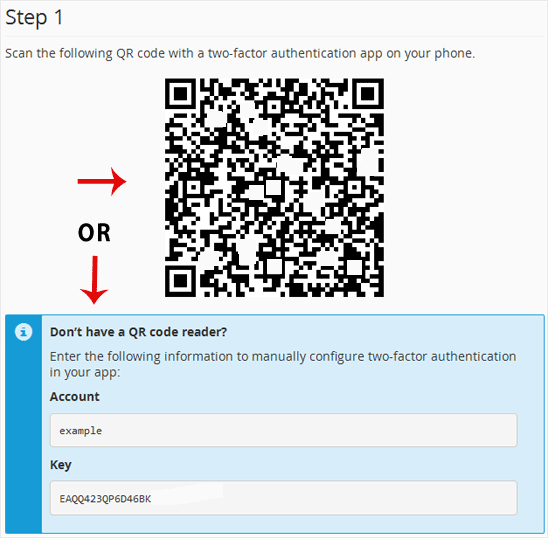
4. Under the Security Code, enter your Two-Factor Authentication code and click on Configure Two-Factor Authentication.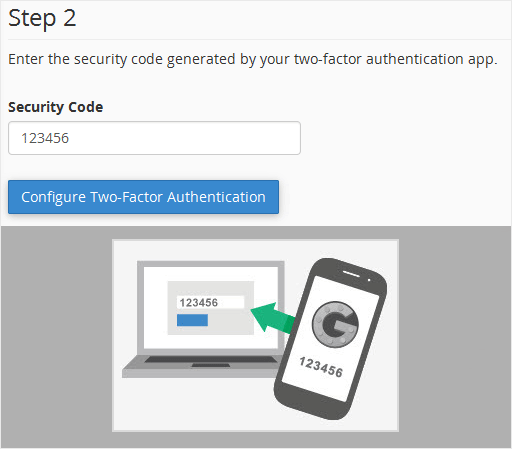
It should display a message such as Success: Two-factor authentication is now configured on your account.
