
You can download files from your website to your computer using the FileZilla Client.
1. Open FileZilla FTP Client.
2. Enter your FTP host, username, and password. You can use your cPanel username and password as your FTP user and password. Then click on Quick Connect.
- Enter your domain name in the Host field, such as ftp.example.com or example.com.

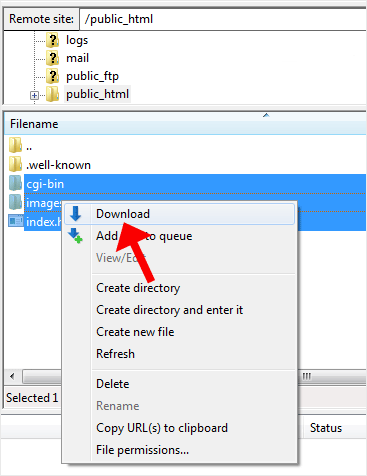
3. On the right-hand side, inside the Filename box, select the files or directories you wish to download. You can press the CTRL key to choose multiple directories/files. Then right-click on the selection and press Download.
It can take a few minutes to download. You can watch the progress.
