Skip to content

How to Change the Password of the WHM Root Account in WHM Print

  • 0

You can change the root user account password from WHM.


1. Log in to your WHM Root Account.


2. Go to Server Configuration >> Change Root Password or type Change Root in the menu filter box. The option will appear. Click on it.
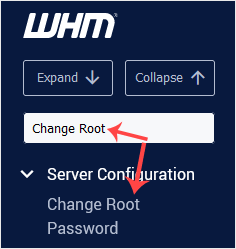
whm-root-password-change-sidebar.gif


3. Enter your new password or use the password generator option to generate a new random password. Make sure that you save your new password and keep it in a safe place.
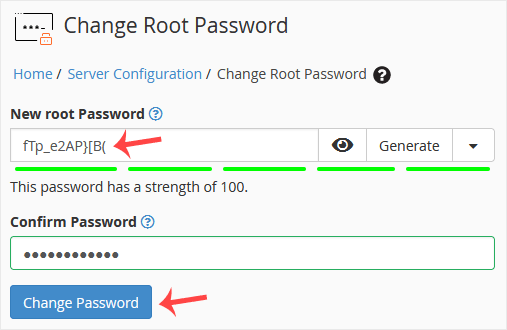
whm-root-password-change.gif


4. Click on Change Password.


Your password will be changed, and you can log in to your WHM root account with your new one.


Was this answer helpful?

« Back

Take Your Host

Everything you came for.

Find your way to the right service or support channel. This is a navigation guide, not an AI chat or a support agent.

Do not enter passwords or payment details.

End this chat?

If you end the chat, the current conversation will be closed and a new empty chat will start.

TakeYourHost AIAsk about services, orders, domains, and support.
Screenshot preview Screenshot attached