
To change the main root FTP account, you have to change the password of your DirectAdmin account. However, if you need to change the password of a specific FTP account, follow this instruction.
1. Log in to your DirectAdmin Account.
2. In the Account Manager section, click on FTP Management or type FTP Management in the navigation filter box, and the option will appear. Click on it.
3. Under the list of FTP Accounts, choose the Account for which you want to change the password.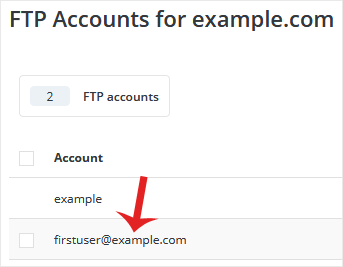
4. Enter your new password in the Enter Password field or click on Generate Random Password to generate one. Please, copy it to a safe place.
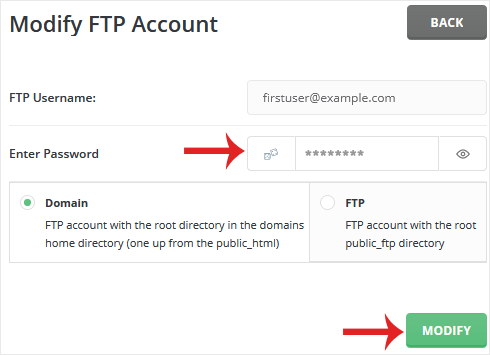
5. Click on Modify.
Your FTP Account password will be changed.
