Skip to content

How to Reset a Plesk's Account Password Print

  • 0


Follow these steps to reset your Plesk account password.


1. Open your Plesk login URL.


2. Click on Forget your password.
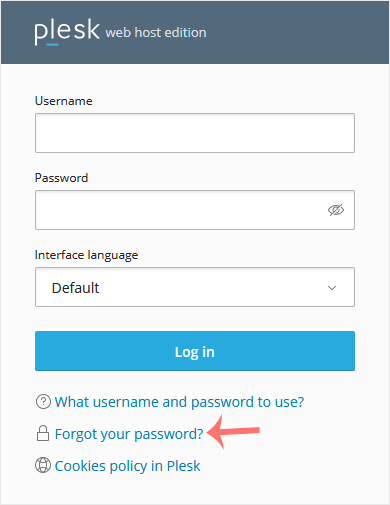
plesk-login-page-forget-password.gif


3. On the Reset password page, enter your email address or choose the Username option. Then type your username, and click Send.
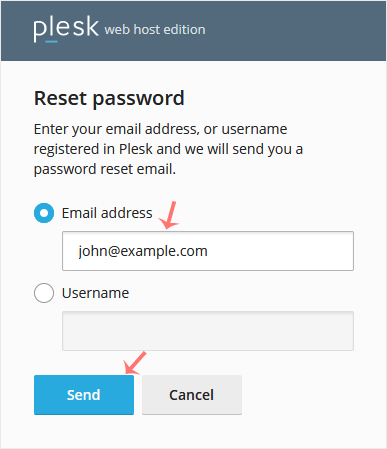
plesk-reset-password-email.gif


4. You should receive an email with the reset link. Please, open it.


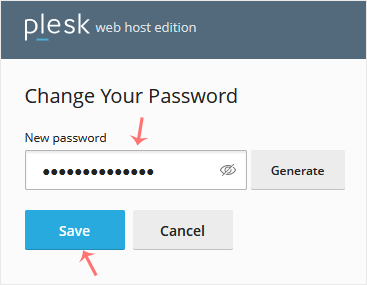
5. Enter the new password or click Generate to create one. You can copy it by clicking on the view password icon.
plesk-password-reset-final-step.gif

6. Click on Save.


After resetting the password, you can log in to Plesk with the new one.


Was this answer helpful?

« Back

Take Your Host

Everything you came for.

Find your way to the right service or support channel. This is a navigation guide, not an AI chat or a support agent.

Do not enter passwords or payment details.

End this chat?

If you end the chat, the current conversation will be closed and a new empty chat will start.

TakeYourHost AIAsk about services, orders, domains, and support.
Screenshot preview Screenshot attached