
Follow this tutorial to add a new domain to your Plesk account.
1. Log in to your Plesk account.
2. Click on Websites & Domains from the Sidebar Menu.

3. Click on Add Domain.

4. Please, choose Blank Website as an option.
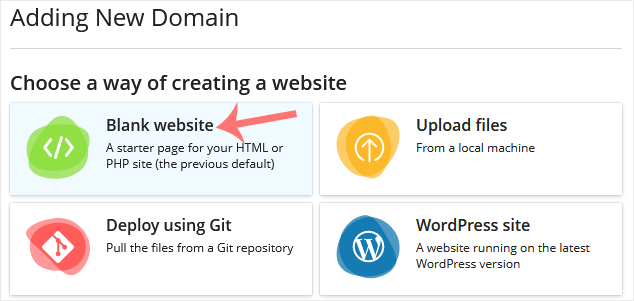
5. In Adding New Domain, enter the following details:
- Select your domain name: Choose the Registered domain name option. If you don't have a domain, choose Temporary domain name.
- Registered domain name: Enter your domain name.
- Hosting Type: Select Website Hosting from the drop-down menu. You can leave all other options as they are.
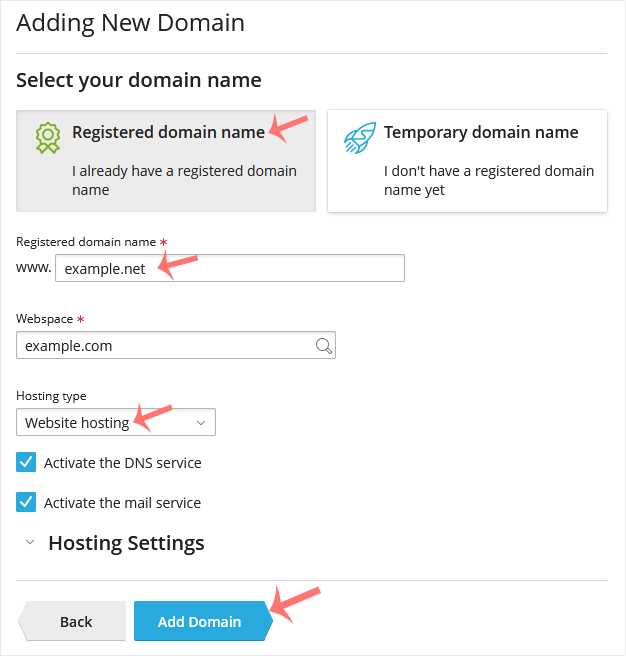
6. Click on Add Domain.
Once your domain is added, you can manage it from the Websites & Domains option.
