Skip to content

How to Change Hostname in Virtualizor Print

  • 0


You can change the hostname in Virtualizor.


1. Log in to your Virtualizor Control Panel.

2. From the left side panel, click on List VPS.

Virtualizor-list-vps-menu.gif


3. Hover your mouse on the appropriate VPS, and that line will be highlighted. Then click on the Manage icon in the highlighted line.

Virtualizor-click-manage-vps.gif


4. Click on the Settings tab and select the Change Hostname. Enter your new hostname and click on Change Hostname.
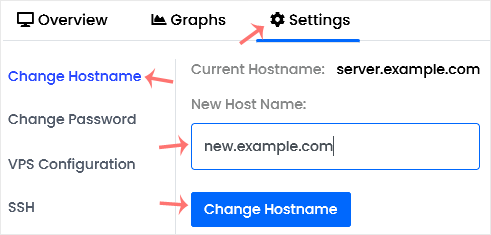
Virtualizor-change-hostname.gif


5. Reboot the VPS to apply the changes.


Was this answer helpful?

« Back

Take Your Host

Everything you came for.

Find your way to the right service or support channel. This is a navigation guide, not an AI chat or a support agent.

Do not enter passwords or payment details.

End this chat?

If you end the chat, the current conversation will be closed and a new empty chat will start.

TakeYourHost AIAsk about services, orders, domains, and support.
Screenshot preview Screenshot attached