Skip to content

How to Enable or Disable Cloudflare's Always Online Feature in cPanel Print

  • 0


Did you ever notice that sometimes, when your server goes offline, Cloudflare keeps serving your website? It is because of the Cloudflare's Always Online feature. You can enable or disable it in cPanel.


1. Log in to your cPanel account.

2. In the Software section, click on Cloudflare.

cPanel-Cloudflare-icon.gif


3. Click on Sign in Here to access your Cloudflare account.

Cloudflare-sign-in.gif


4. Click on Home in the menu.

cloudflare-home-menu.gif


5. In the front of Always Online, You can see the On/Off button. Click on it to enable or disable the Always Online feature.
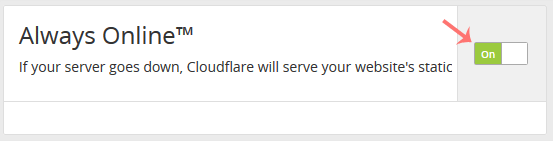
Cloudflare-enable-disable-always-online.gif


Was this answer helpful?

« Back

Take Your Host

Everything you came for.

Find your way to the right service or support channel. This is a navigation guide, not an AI chat or a support agent.

Do not enter passwords or payment details.

End this chat?

If you end the chat, the current conversation will be closed and a new empty chat will start.

TakeYourHost AIAsk about services, orders, domains, and support.
Screenshot preview Screenshot attached